Thursday, July 10, 2008

Google News Tests New Design

Google News experiments with a lively and visually-rich design that shows images, videos, quotes, but also interesting and popular stories. There's a "featured photo" section that uses images from AFP, The Associated Press, Reuters, marking the first time when Google News promotes stories just because it has the permission to show associated images.

If you are logged in, the new interface personalizes all the sections, not just the front page, and you can switch to the non-personalized version to see the differences.

The homepage shows a list of "developing stories".


The Sci-Tech section, with more photos.


Front-page sections can be minimized and look like iGoogle gadgets.


Google News clusters prominently display the main title.


The footer is more lighthearted. "All the news that's fit to crawl. Auto-generated from over 4500 news sources, void where prohibited."

In June, Google News blog announced the new UI, without getting into details. "Over the course of the next few weeks, you may notice a few changes to Google News... or maybe not. You see, we'll be running some experiments on the look and feel of our site, based on an accumulation of user research and feedback, as well as the evolving state of online journalism."

{ Thnaks, Santosh. }

Wednesday, July 9, 2008

Lively (Google's 3D Chat Rooms)

Google's Niniane Wang, who previously worked on rendering clouds, rain and snow for Microsoft Flight Simulator, realized that text comments are pretty boring. "A while ago, I looked around the social web and wished that it could be less static. Sure, you can leave a comment on a blog or write a text blurb on your social networking profile. But what if you want to express yourself in a more fun way, with 3D graphics and real-time avatar interactions?" explains Niniane.

That's how Lively started and we first heard about it last year, when it was tested by some students from ASU. At that time I associated the project with Google Earth, but there's no connection with this application for now.


Lively's goal is to help people "express [themselves] with and without words, and to do this in the places [they] already visit on the web." You can create rooms, decorate them, choose avatars and interact with other people from the room using words or actions. Each room has a permalink and can be embedded in a web page.

To use Lively, you need to download a client that only works in Windows XP/Vista and has plug-ins for Firefox and IE, log in to a Google account and get a Lively ID (Google recommends to choose something different from your Google username). Then you can choose a name and an avatar that can be customized later.


Lively's client also includes support for Google Desktop gadgets and developers can create their own objects with custom interactions.

Many people compared Lively with Second Life and IMVU. "In 2005, [Google] made a secret bid to buy IMVU. The company turned Google down. The search giant did manage to hire one of IMVU's five founders, Mel Guymon," writes Venture Beat. Mel Guymon, who is now Google's Head of 3D Operations, says that "Google making a play validates the space like no one else. We're basically saying this is a real space and everyone is doing this. (...) The implementation of it takes the best of the space, rich avatars and a large catalog of virtual goods, which by the way is free, and have it be a part of your existing social network, which is the big wave right now. That's really the silver bullet."


Lively has the potential to attract some of the people that use social networks and want a fun way to express themselves, but having to download a client that uses a lot of resources, slows down your computer and crashes often is a big downside.

Related:
Google's Lively social 3D world is 20 percent done
Google Lively FAQ

Tuesday, July 8, 2008

Google Calendar Buttons

I don't know if there are many useful buttons for Google Toolbar, but there's a Google Calendar button that offers a lot of features for its size.

1. You can use it as a shortcut for Google Calendar. Just click on the button, instead of trying to find Google Calendar in the list of bookmark or typing the first letters of its URL in the address bar.

2. Click on the small arrow next to Google Calendar's logo to see a list of upcoming events from your main calendar. If you select an event, you'll be able to read the description and make some changes.


3. Add events to your main calendar by typing the text in Google Toolbar's search box and then clicking on the calendar button. Unfortunately, Google doesn't add the event to your calendar, it only prefills a form with information from your request.

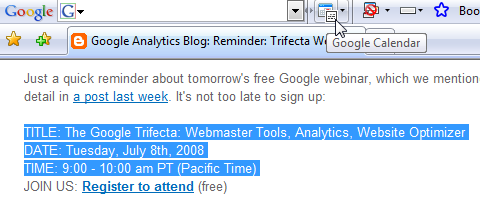
4. You can also add events by selecting some text from a web page and clicking on the calendar button (alternatively, right-click and select Send to > Google Calendar). Google Calendar to parse a lot of complicated text, including the one illustrated below:


For a visual representation of your calendars, you can add the Google Calendar gadget to the toolbar. The gadgets shows events from any number of your calendars and doesn't open a web page when you add an event.

Monday, July 7, 2008

Find Who Has Access to Your Gmail Account

After years of testing, Gmail has finally added a very useful security feature: tracking open sessions. If you log in to Gmail from more than one computer and you forget to sign out, you'll be able to see the list of locations where your account can still be accessed.


Until now, the only solution when you forgot to log out from Gmail after using a public computer was to change your password. Otherwise, anyone could access your account without knowing the password. Now you can sign out remotely from all the locations where your Gmail account is still open.

If you click on "Details" in Gmail's footer, you'll find a lot of interesting information about your sessions. "The top table, under Concurrent session information, indicates all open sessions, along with IP address and access type -- which refers to how email was retrieved, for example, through iGoogle, POP3 or a mobile phone. The bottom table, under Recent activity, contains my most recent history along with times of access. I can also view my current IP address at the very bottom of this window, where it says This computer is using IP address...".


This could be useful if you want to find whether someone else has access to your account: you'll be able to find the IP address and the date of the most recent activity in your account.

Gmail's blog mentions that this feature is currently being rolled out in the new version of Gmail, so you may not see it right now. Google AdSense, PayPal and orkut are three other services that show the time of your last login so you can protect against abuse, but Gmail's new feature is much more advanced.

Among the things you can do to protect your Gmail account, it's a good idea to sign out after reading your email, not to select "remember me" when you log in from a public computer and to choose a good password that should remain secret.

Google Maps Tests Walking Directions

Google Maps tests a new feature: walking directions. You can already get driving directions and, for a small number of locations, Google Maps has transit directions, but these directions are not always useful if you don't use a car or a bus.

Google suggests to "use caution when walking in unfamiliar areas", since the "walking directions are in beta". Chris, who sent this tip, spotted the feature for New York, but it's likely that Google randomly selected a small number of users to try the new feature and send feedback.


Update (July 22): Search Engine Roundtable noticed that the walking directions are live. The new feature is available in most locations where Google offers driving directions.

{ Thank you, Chris. }

Import OPML Files to iGoogle

While exporting iGoogle feeds to OPML could be used if you want to move your feeds to another service, importing feeds from an OPML file is a good way to add a large number of feeds to iGoogle.

Here's how you can import the feeds from an OPML file to iGoogle:

1. Obtain an OPML file from your feed reader or personalized homepage:
* Google Reader lets you export your subscriptions in the Settings (direct link to the OPML file)
* Bloglines has a link in the main interface: "Export Subscriptions"
* in Netvibes you have to click on Add content > Add a feed > Export
* My Yahoo has a difficult-to-find OPML file
* Windows Live lets you export your subscriptions in the advanced options
* to export Firefox's live bookmarks, install an extension.

I only tested the script with the OPML files exported by Google Reader, Bloglines, Netvibes, My Yahoo and Windows Live Personalized Homepage, so the conversion might not work for other feed readers.

2. Open the OPML file in a text editor and copy all the content below. (If you are concerned about sharing private data, you should know that this is just a client-side script that doesn't store your data and it doesn't send it to a third-party service.)


3. What you got is the content that needs to be added at the bottom of iGoogle's settings file. Log in to your Google account, go to iGoogle's settings page and scroll to the Export / Import section. Click on "Export" to download iGoogle-settings.xml, a file that contains a list of all your gadgets, feeds and their settings. Don't close the iGoogle settings page because you'll need to import the file later.

4. Backup your iGoogle settings file. Create a copy of the iGoogle-settings.xml file, just in case something goes wrong. You'll be able to import the settings and go back to a working iGoogle.

5. Open iGoogle-settings.xml in a text editor and add the text obtained at the step #2 before the line that contains </GadgetTabML> (the last non-blank line), like you see in the screenshot.


6. Save the file and import it to iGoogle settings, in the Export / Import section.

All folders from the OPML file should be converted to iGoogle tabs, which can be renamed and reordered in the settings. iGoogle doesn't save the state of an item (read/unread) and only lets you see up to 9 recent items from a feed, but it's a great dashboard for your feeds.


Related:
Export iGoogle feeds to OPML

Sunday, July 6, 2008

Export iGoogle Feeds to OPML

I've heard many people complaining that iGoogle doesn't offer an option to export feeds. Some of them wanted to use a feed reader like Google Reader, while others intended to migrate to competing services like Netvibes or Pageflakes.

Thankfully, iGoogle lets you export your settings and gadgets as a XML file, which can be easily processed and transformed into an OPML file.

Here's what you need to do if you want to export the feeds from your iGoogle page in the OPML format:

1. Log in to a Google account.

2. Open this page, right-click and select "View source" (for Internet Explorer), "View page source" (Firefox) or "Source" (Opera). Copy the entire content of the file to the clipboard (Ctrl+A, Ctrl+C). Alternatively, download iGoogle's backup file and open it in a text editor.

3. Paste the code below and then click on "Convert to OPML". (If you are concerned about sharing private data, you should know that this is just a client-side script that doesn't store your data and it doesn't send it to a third-party service.)


4. Save the output in a XML file: igoogle-subscriptions.xml.

To import the file in Google Reader, go to Settings, click on Import/Export and upload the OPML file. In Netvibes, the steps are less obvious: Add content > Add a feed > Import. Most feed readers have an option to import a list of subscriptions.

I tested the script for converting iGoogle's backup file in IE7, Firefox 3, Opera 9.5, using Google Reader and Netvibes as destinations.


Related:
Import OPML files to iGoogle