Showing posts with label Google Reader. Show all posts

Monday, May 24, 2010

Comment on Any Google Reader Shared Item

Google Reader simplified the commenting feature so that anyone can comment on a shared item. "Up until now, someone had to be in a designated sharing group to be able to comment on a post, even if you were sharing publicly. To make things a lot simpler, we've made it so that if you can see a shared item, you can comment on it."

An important side-effect is that Google Buzz users can comment on any post shared in Google Reader, assuming that the shared items are connected to a Buzz profile. Since you can now comment on a Google Buzz post by replying to a message in Gmail, you could share a blog post in Google Reader and one of your Buzz followers could post a comment from in Google Buzz and then reply to your answer from Outlook, Thunderbird or from the Gmail mobile app for Blackberry.

If you don't like Google Reader's interface, there are desktop apps like FeedDemon, NetNewsWire or Liferea that import your Google Reader subscriptions and synchronize your actions with Google Reader. That means you could share a blog post in FeedDemon and someone could post a comment from Google Buzz or from an application that uses Google Buzz API.

While people can post comments to a Google Reader shared item in Google Buzz, you'll still see the comments in Google Reader. It's not really important where you find a great article and where you comment.


In other news, Google Reader will drop support for outdated browsers (IE6, Firefox < 3.0, Safari < 4.0, Chrome < 4.0) and will remove the offline mode powered by Google Gears starting on June 1. Why not remove offline support when Google Reader implements the same feature in HTML5?

Thursday, April 29, 2010

Disable Google Reader's Social Features

If you don't like Google Reader's social features and you only want to read your subscriptions, you can now switch to the antisocial asocial Google Reader interface:

1. Go to Google Reader

2. Type this JavaScript code in the address bar:

javascript:antisocial('true')

3. Google Reader will reload and you'll see a simplified interface that removes the section "People you follow" and no longer shows shared items from your friends.


The setting is saved to your account, even if the toggle is not included in the interface. To go back to the standard interface, type this code in the address bar:

javascript:antisocial('false')

{ via George Moga }

Friday, April 23, 2010

Google Reader Adds Support for Video and Audio Tags

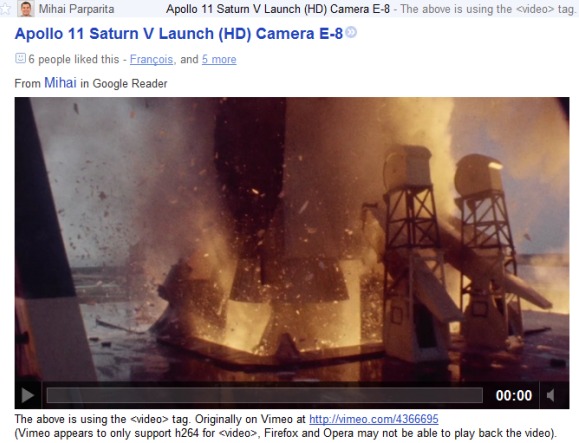
Google's feed reader started to support the video and audio tags from feeds. The only popular browser that doesn't support the two tags is Internet Explorer, but that doesn't mean that you'll be able to play videos without plug-ins in all the other browsers.

As the screenshot below shows, Firefox and Opera don't support the H.264 compression standard, so you can't play videos from sites that only use H.264. Even if video sites like YouTube or Vimeo started to test HTML5 players, they don't offer the option to embed videos using HTML5 tags.


{ via Google Reader's Twitter page. Thanks, François. }

Monday, March 29, 2010

Bookmarklet for Google Reader Play

Mihai Parparita wrote a bookmarklet that loads the feed for the current site in Google Reader Play. Mihai suggests to use the bookmarklet for web pages that have a lot of photos, like Flickr profiles or comic feeds.


Google Reader Play creates a slideshow from any feed or collection of feeds, but I don't think it's useful as a standalone app. Google Reader could detect photo feeds and integrate Reader Play as a new view.

Wednesday, March 10, 2010

Google Reader Play

Google Reader Play is a new way to read popular articles and an interesting interface for browsing web pages.

"In Google Reader Play, items are presented one at a time, and each item is big and full-screen. After you've read an item, just click the next arrow to move to the next one, or click any item on the filmstrip below to fast-forward. Of course, you can click the title or image of any item to go to the original version. And since so much of the good stuff online is visual, we automatically enlarge images and auto-play videos full-screen," explains Google.


The interface is optimized for posts that include images and for short blog posts. You can use keyboard shortcuts to navigate to the next post or you can start the slideshow view to only look at the images and headlines.

I was disappointed to see that Google Reader Play doesn't show your subscriptions. It only shows a list of recommended pages and Google uses your actions (starring, liking or sharing items) to improve the recommendations. If you want to read your subscriptions in Google Reader Play, use this URL:

http://www.google.com/reader/play/#stream

Tuesday, January 26, 2010

Track Page Changes Using Google Reader

Not all web pages offer feeds and sometimes it's useful to monitor web pages and find the latest information. A great service that offer this feature is Page2Rss, which provides a feed for each monitored web page.

A similar feature is now available in Google Reader and it's cleverly integrated: click on "Add subscription", type the address of a web page and Google Reader will automatically generate a feed if it can't detect one.


"We provide short snippets of page changes to help you quickly decide if the page is worth revisiting and we're working on improving the quality of these snippets," says Brian Shih.

"Reader may not always detect updates to your content. Currently, only English-language content in HTML format is supported. In addition, updates to content in frames are not detected; nor are updates to content that requires sign-in to view," mentions a help center article, which also informs that webmasters can prevent Google from monitoring web pages by using the features that block Googlebot from crawling or caching web pages. This suggests that Google Reader's page monitoring uses data from Google's search index and the changes may not be detected quickly if the web page is not popular or it doesn't change often.

Since I rarely visit Google's homepage, generating a feed for google.com or for other international Google homepages is a great way to track all the doodles and the promotional messages.


For now, Page2RSS offers more features (posts have better titles, you can view a cached version of the page), but Google Reader is more reliable. For example, Page2RSS doesn't show the latest changes for google.com.

Tip: to find the URL of the feed generated by Google, click on "show details" and you'll find a URL like:

http://www.google.com/notificationservice/webchanges/webfeeds/11009120664050806769

Tuesday, November 24, 2009

Show Favicons in Google Reader

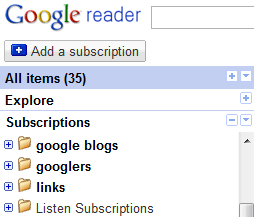
If you'd like to see a favicon next to each Google Reader subscription, you can now add this feature: go to the settings page and check "Show favicons for subscriptions". Another way to enable the feature is to click on the arrow next to "Subcriptions" and select "use favicons".


The feature is disabled by default. "We realize that not everyone wants their subscription list to turn into a multi-colored extravaganza, so we've made it into a setting that you can access from your subscriptions menu," explains Mihai Parparita.

Google uses a special service for obtaining the favicons instead of loading the images directly. For example, Search Engine Land's favicon is generated like this:

http://s2.googleusercontent.com/s2/favicons?domain=searchengineland.com

Friday, October 23, 2009

Google Reader's Personalized Ranking

Google Reader added a feature that tries to sort the posts from your subscriptions based on your interests. The option is called "sort by magic" and it's available in any Google Reader view, but it's not enabled by default. "Your personalized ranking is automatically generated. It takes into account your past reading behavior (including liking and starring), and global signals. This process is completely automated and anonymous," mentions an article from Google Reader's help center.

The ranking algorithm was designed to prioritize the posts from subscriptions you frequently read and the posts that are popular among your friends and other Google Reader users. "Try clicking the like button on things you think are important or enjoy reading, and we'll learn to put items like that first," suggests Google.


Another change is that the list of recommended feeds and the "popular items" feeds have been consolidated in the new "Explore" section. "We use algorithms to find top-rising images, videos and pages from anywhere (not just your subscriptions), collect them in the new Popular items section and order them by what we think you'll like best," explains Google.


Google Reader is now more clever, as it uses attention data to personalize your reading list based on your past behavior.

Wednesday, October 14, 2009

Integrated Interface for Google's Services

Integrated Gmail is a Firefox extension that adds Google Calendar and Google Reader to Gmail's interface. It's a simple way to switch between the three Google services without opening multiple tabs.

The extension is customizable, so you can add other Google services, reorder them and delete the ones you don't use. The interface for each service loads in a collapsible box and it's preloaded when you open Gmail.


You can add events or check your agenda while composing messages, read your feeds and chat with your friends from the same interface or copy some text from an email to a notebook.

The extension is not perfect, it might slow down browsing, but it's an interesting experiment and a good starting point for an official unified interface for Google's services. iGoogle, Google's iPhone interface and the support for gadgets in Gmail show that this idea has a great potential.

Wednesday, August 12, 2009

Google Reader's "Send to" Feature

Google Reader added a new feature that lets you share posts in other services: Twitter, Facebook, Digg. The feature is opt-in, so you need to go to the settings page, click on the "Send to" tab and pick your favorite services.


After selecting an item, use the keyboard shortcut Shift+T to quickly open the "send to" menu. Google Reader opens a new tab when you choose one of the "send to" options and most of the necessary information it's already pre-filled.


If your favorite service is not included in Google Reader's list, you can add it from the settings page by clicking on "Create a custom link". Here's how to add a "send to" option for Google Bookmarks.

Name: Google Bookmarks
URL: http://www.google.com/bookmarks/mark?op=edit&output=popup&bkmk=${url}&title=${title}
Icon URL: http://www.google.com/favicon.ico

And here's how to use AddToAny, a service that lets you select between many social sites.

Name: Add to Any
URL: http://www.addtoany.com/share_save?linkurl=${url}&linkname=${title}
Icon URL: http://www.addtoany.com/favicon.ico

Google Reader added two other options: you can now subscribe to sites added to your contacts' profiles and mark as read items older than a day, a week or two weeks. The second option is useful if you have a lot of unread items and you only want to read the recent news. As you probably know, Google Reader automatically marks as read the items that are older than a month and this can't be changed.

Wednesday, July 15, 2009

Google Reader's Social Evolution


For more than a year, Google Reader has been struggling to add social features and almost all the new features were contrived, difficult to use and only cluttered the interface.

Originally, Google Reader's only social feature was sharing items in a public page. The trouble was that the shared page was difficult to find and users had to email the URL to their friends. Then Google Reader decided to automatically add your shared items to the reading list of your Google Talk friends, but those people weren't necessarily your friends and some were even added automatically by Gmail if you communicated often. Eight months later, Google Reader started to let you create a custom friend list.

Sharing an item wasn't enough as users couldn't explain why the post was interesting. To make things more complicated, Google Reader added "share with note". "Use the "Share with note" button on the item toolbar to create a copy of that item with your own note attached to it," explained Jenna Bilotta.


Sometimes the annotations were debatable and you wanted to post a reply, but Google Reader didn't have a commenting feature. Then comments came up and you could comment "on any items that you share or that have been shared by your friends". And since the interface wasn't complicated enough, Google Reader added a comment view to keep track of the posts that have comments.

The most recent additions help you find other people who use Google Reader. For the first time, you can protect your shared items by only making them available to the people from your friends list. You can also use Google's public profile search to find other people who share items and to follow them.


In addition to starring, sharing and sharing with note, Google Reader users can "like" posts. Why would you like a post when you can star it? By default, the starred items are private, while the items you like are public. Google Reader displays the number of likes next to each post and a list of the people who liked the post.


Google Reader became more difficult to use as the new features cluttered the interface and forced you to make more decisions. Now you have to decide if you want to star an item or just "like" it, if you want to share an item or share it with a note, if you want to follow the people who are following you.

FriendFeed, a service that helps you share and discuss interesting web pages, solved Google Reader's problems without complicating the interface. If your FriendFeed page is public, all your actions are visible to your subscribers. When you "like" an item, you automatically share it and you can also add a note. Unlike Google Reader, the note is actually the first comment from a discussion. User actions help FriendFeed find interesting posts, which are promoted at the top of the page.

Monday, June 29, 2009

Google Reader Lite

Google Reader's homepage has been updated and it features a small feed reader with three categories: "news", "sports" and "popular". The iframe points to this page and I think Google Reader should offer a customizable version, so you can embed it in your site.


Google already offers a cool AJAX Feed API that can be used to display the most recent posts from one or more feeds, but Google Reader's interface is more user-friendly and it lets you read the posts without leaving the page.

Friday, May 22, 2009

Share Collections of Feeds in Google Reader

Google Reader has always allowed you to share collections of feeds: you can add the feeds you want to share to a folder, make the folder public and get a public page that shows the latest items from the feeds. Other people could subscribe to your public page in any feed reader or they could download the OPML file and import it in a feed reader. The problem with this approach is that it's not very easy to find, the OPML file is there only if you know how to obtain the address and you need to keep the folder even it's no longer useful to you.

Bundles are a more transparent way to create collections of feeds: you'll find them if you click on "Browse for stuff" in the sidebar. Google Reader already offers 447 themed bundles for "Mindmapping", "Pop-culture", "Startups", "Food blogs", "Architecture" and other topics. The nice thing about bundles is that you can subscribe to a list of hand-picked blogs with one click.

Now you can create your own bundle from the same page: just select a name and drag 5-10 feeds from your subscriptions. They don't have to be perfect, since you'll be able to add more feeds later.


After creating the bundle, Google Reader will generate a page that looks like the shared items page, but it has a explanatory description, the list of feeds that are mixed and the most recent items from the feeds. You can subscribe to the bundle by clicking on the "Subscribe" button if you use Google Reader or by exporting the bundle as OPML and importing the file in a feed reader. The bundle's name will become a folder and all the feeds will be added to that folder, an improvement over the public folder approach, where the collection is mixed in a single feed.


Here are two examples of bundles: Apple and Google blogs.

{ via Google Reader blog }

Google Reader Gets More Social

The "What's popular" iGoogle gadget, launched last month as a simple way to discover interesting web pages, has been improved and you can now automatically add the shared items from Google Reader.

The option is disabled by default, but you can enable it in the new settings page. "Automatically submit items you share via Google Reader into the What's Popular gadget. These shares will be attributed to you. Changing this setting will only affect new shared items from Google Reader."


Google's gadget includes web pages from different sources: user-contributed pages, popular posts from Google Reader and popular videos from YouTube. You can rate the pages that you like or dislike by clicking the voting buttons displayed next to each item, much like in Digg, Reddit or Yahoo Buzz.


The gadget can be added to your personalized Google homepage, but you can also bookmark this URL. "What's popular" has less than 17,000 users, but that's probably because Google hasn't officially launched it yet.

Google Reader has an enormous amount of attention data (starred items, shared items, pages that are read or emailed), but it didn't use it to recommend popular posts, except for the "What's cool in Google Reader" feed.

{ via Blogoscoped Forum }

Thursday, May 21, 2009

Import iGoogle Feeds into Google Reader

Google Reader added an option to import the feeds from iGoogle, but you'll be able to use it only the first time you load the feed reader or by opening the welcome page. I assume that Google Reader wanted to help iGoogle users who need a more powerful feed reader.

The process of importing feeds is extremely painful, since Google Reader subscribes to each feed one by one. If you only have 5-10 feeds in iGoogle, it will import the feeds quickly, but you'll need to wait a lot longer if you have more than 50 subscriptions.

You can select the feeds that should be imported and Google Reader will convert iGoogle's tabs into folders.


Last year, I wrote a script that exports iGoogle feeds to OPML, so you can import them in other feed readers. It's more difficult to use than Google Reader's feature, but at least it's efficient.

Friday, January 30, 2009

Manual Feed Updates in Google Reader

If your Google Reader subscriptions aren't up-to-date or you suspect that a blog has published posts that haven't been indexed by Google Reader, just click on "Refresh". That button usually checks if there are new posts cached by Google Reader, but when you open an individual subscription the button forces an update and loads the new posts. Alternatively, you could just press "r" to update the feed.

In the screenshot below, you can see that Google Reader loaded two new posts from VentureBeat after clicking on the "Refresh" button.


{ via Google Reader's Twitter page }

Tuesday, November 11, 2008

Translate Feeds in Google Reader

Just because you don't speak a certain language doesn't mean you shouldn't read interesting articles written in that language. After increasing the number of supported language pairs and providing an API, Google Translate is rapidly integrated in many Google services. YouTube started to translate search results and closed captions, Google Talk provides translation bots, Google lets you search content in other languages and now you can subscribe to feeds in foreign languages using Google Reader.

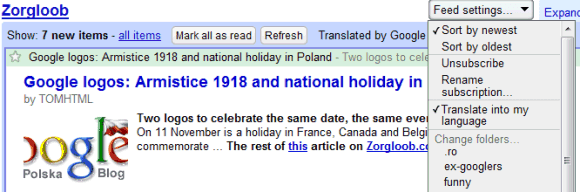
After subscribing to a feed in Google Reader, click on "Feed settings" and select "Translate into my language". Google detects the feed's language and it translates the content into Google Reader's interface language (you can be changed it from the settings page).


Some Google-related sites in other languages than English:
Zorgloob (French)
Google Watch Blog (German)
OJObuscador (Spanish)
Google Discovery (Portuguese)
underGoogle (Portuguese)

When Google's machine translations improves, the next step could be translating content into your language without having to select an option. In the meantime, you can expect to find Google Translate integration in Gmail, Google Docs and other Google services.

{ via Google Reader Blog }

Tuesday, October 28, 2008

More Data About Feeds in Google Reader

Google Reader shows more information about your subscriptions. Click on a feed from the navigation sidebar (or type g, then u, followed by the first letters of the title) and you should see the most recent posts from that feed. If you click on "show details", Google Reader has a lot of interesting data: the number of posts per week, the number of subscribers and a histogram of the feed's activity in the past 30 days.

The most interesting thing is that you can see how many posts you've read and when do you usually read the posts from a feed.


{ via FlowingData }

Friday, August 22, 2008

Shallow Reader

I don't like to read feeds in Google Reader or in any other feed reader. After subscribing to sites that seem interesting, Google Reader makes them boring and uniform. All the subscriptions lose their identity and become random bits. There's also the pressure of having to read the new posts and clean the "inbox" which makes you skip interesting posts or just skim them.


"Skim = To read or glance through (a book, for example) quickly or superficially." (The American Heritage Dictionary of the English Language, Fourth Edition. Houghton Mifflin Company, 2004.)

When you open Google Reader and there are 400 new posts, each article becomes a mission from a hopeless game created by yourself. You want to be free again, so you pretend to read some of the articles or just their titles, without a context and without seeing the full picture. "Mark all as read" is your only ally, but you don't want to admit that you need it.

"Subscription - Contractual agreement between a seller and a buyer to provide the buyer with a service or product to be delivered (served) over a period of time specified in the contract at a total price that is dependent upon the duration of the service." (Dictionary of Marketing Terms. Barron's Educational Series, Inc, 2000.)

Feed readers seemed a good alternative to newsletters because you gain access to more content without having to reveal your identity, you can always unsubscribe and it's easier to share the content. But newsletters were less frequent and had a personal touch.

"Shallow - Lacking physical depth; having little spatial extension downward or inward from an outer surface or backward or outward from a center." (WordNet)

Reading becomes a mechanical task that needs to be completed, instead of a rewarding intellectual activity. You no longer pay attention to details because you're anxious to "read" everything.

"Read - To examine and grasp the meaning of (written or printed characters, words, or sentences)." (The American Heritage Dictionary of the English Language, Fourth Edition. Houghton Mifflin Company, 2004)

Monday, August 18, 2008

A Directory of Google Reader Shared Pages?

Google promotes on the homepage a site called "Power Readers in Politics", which lists the Google Reader shared pages for US political journalists and the campaigns of Barack Obama and John McCain.

"You can read what they read, and see what's on their minds as they share and discuss news. Each participant has created a reading list with a feed you can subscribe to in Reader (or any other feed reader), and is also publishing shared items," says Google Reader blog.

While the ad from Google's homepage is misleading ("read what Barack Obama and John McCain are reading with Google Reader"), the idea of grouping related Google Reader shared pages could be expanded. Users could choose if they want to add their shared pages to a directory categorized based on the items that are usually shared. Google Reader could show the number of subscribers for each shared page and might even recommend shared pages related to your current subscriptions.

Sites like ReadBurner and RSSmeme let you discover people that share interesting things, but I feel that Google Reader could greatly improve this process. Shared pages act like a filter: instead of subscribing to tens of blogs about the US elections, you can subscribe to 3-4 shared pages that summarize the most interesting news and debates.


Update: Here's my shared items page and the corresponding feed. I mostly use it share blog posts about Google or technology in general, but it would be great if Google Reader added the option to separate the page in sections.