Showing posts with label Google Docs. Show all posts

Thursday, August 19, 2010

Google Spreadsheets Spell Checking

Google Spreadsheets added spell checking, but it doesn't find misspellings automatically, like in Google's word processor. You need to click on the Tools menu and select Check spelling. Google starts to find mistakes and suggests corrections from the dictionary. Unfortunately, you can't add words to the dictionary yet and Google's suggestions are sometimes terrible.

"The tool will go through all the cells on your sheet, highlighting each cell which has a misspelled word in red. Words that might be misspelled in each cell are underlined in red and can be changed by clicking on them and selecting the right spelling," explains Google Docs blog.


Google should replace the dictionary-based spell checker with the context-sensitive spell checker that's already used in Google Wave and Google Search. Instead of using a dictionary, this spell checker extracts data from web pages and Google searches to find a statistical language model, much like Google Translate. This model allows Google to predict mistakes and to determine the most likely corrections.

Monday, July 26, 2010

Google Punch

A video posted by Google shows the name of a new Google Docs feature: Google Punch. A "punch" is a Google Docs filetype, just like a document, a spreadsheet or a presentation.


Here's the video:


One of the definitions of the word "punch" is "an iced mixed drink usually containing alcohol and prepared for multiple servings; normally served in a punch bowl". Maybe Google Punch is a free-form document that lets you combine data from other documents, spreadsheets, presentations and forms. What do you think?

{ Thanks, Jeremy and Mark. }

Monday, June 28, 2010

Mobile Google Docs Viewer

Google Docs Viewer, a service that lets you preview online PDFs, Word documents and PowerPoint presentations, is now available for iPhone and Android devices.

Google added some features that make the service more useful on a touchscreen device: pinch to zoom (only for iPhone and iPad), buttons for zoom and pagination.

Unfortunately for Google, iPhone's built-in PDF reader and Microsoft Office viewer are much better than Google Docs Viewer because they don't convert documents to images. Some Android phones include a document viewer based on Quickoffice, which also does a better job than Google Docs Viewer. There's also Adobe Reader for Android, probably the best Android PDF reader you can download for free.

Tuesday, June 22, 2010

Google Spreadsheets Adds Format Painter

Google Spreadsheets added a feature that lets you copy the formatting a cell and use it for other cells. It's called "format painter", like the similar feature from Microsoft Office.

To use the format painter, select a cell that has special formatting, click on the "paint format" button from the toolbar and then select one or more cell to apply the formatting.


Microsoft offers an example to show why this feature is useful:

"Say you've written a report in Word. You like the look, especially your headings, which are 14 pt. Bookman Old Style, centered, green, and bold, with a nice subtle shadow. Fifteen minutes before you're supposed to present the report to the team, your manager asks you to add four new sections to the report. You spend thirteen minutes adding the information, and the next two wishing that you hadn't chosen such complicated formatting for your headings, since you now have to apply it to all the new ones. Using Format Painter saves you that time and duplicated effort. Instead of having to manually apply the font, font effects, centered paragraph alignment, and other formatting to each new section heading, you can quickly copy all of the formatting attributes by using one toolbar button."

Unfortunately, format painter is not available in all Google Docs applications and you can only use it in Google Spreadsheets. So much for the Google Docs consistency.

{ Thanks, Cougar Abogado. }

Monday, June 21, 2010

Google Adds OCR for PDF Files and Images

When you upload files to Google Docs, you'll notice a new option that tells Google to convert the text from PDF and image files to Google Docs documents. The feature has been released last year as an experiment, so Google had enough time to improve the accuracy of the results.


I've tried to convert an excerpt from the book Rework and the result wasn't great. About 10% of the text has been incorrectly converted and the formatting hasn't been preserved.

"This document contains text automatically extracted from a PDF or image file. Formatting may have been lost and not all text may have been recognized," explained Google in a note included in the document.


To be fair, ABBYY Online wasn't able to produce much better results:


Update: Google Docs Blog says that this feature only works for the following languages: English, French, Italian, German and Spanish. "For the technically curious: we're using Optical Character Recognition (OCR) that our friends from Google Books helped us set up. OCR works best with high-resolution images, and not all formatting may be preserved."

{ spotted by George }

Wednesday, June 16, 2010

Google Docs and Backwards Compatibility

When Google announced a new version of Google Docs in April, it was obvious that not only the user interface has been changed. The new document editor, code-named Kix, is so different that Google had to change the way documents are stored.

"The new Google document editor doesn't use the browser to handle editable text. We wrote a brand new editing surface and layout engine, entirely in JavaScript. (...) To you, the new editor looks like a fairly normal text box. But from the browser's perspective, it's a webpage with JavaScript that responds to any user action by dynamically changing what to display on each line," explains Google.

When Google launched an early preview of the new online word processor, you probably noticed that the only way to see the new version of the editor was to create a new document. All the existing documents were tied to the old editor and Google didn't offer an option to convert them. A Google blog post informs us that all the new documents will be created using the new editor:

"Beginning today and rolling out over the next couple of weeks, all new documents will be created using the new documents editor. Docs already created using the older editor will remain there. We will be sharing more information on how to move those documents to the new version soon."

The problem with the new editor is that it lacks many features that were previously available in Google Docs: translation, editing CSS and HTML, document settings, custom dictionary, comparing revisions etc. These features will probably be added to the new editor, but users expect to find new features in a major update, not missing features.

Another issue is that most documents will open in the old editor, while recent documents will open in the new editor. Google will offer an option to migrate the existing documents to the new format, but users shouldn't have to deal with converting between formats.

The new document editor should have become the default option when all the features from the old editor were implemented and all the existing documents should have been converted to the new format. Meanwhile, you can still create documents using the old editor if you use this URL: https://docs.google.com/?action=newdoc.

Also notice that the two document formats (Writely and Kix) have slightly different icons:

Friday, June 4, 2010

Try Google Docs Without a Google Account

Now you can try Google Docs even when you don't have a Google account. It's not difficult to create a Google account, but sometimes you want to show someone how Google Docs works without revealing sensitive information from your Google account.

If you go to https://docs.google.com/demo/, you can start editing a document, a spreadsheet or a drawing and share the links with other people, so you can collaborate in real-time. Google says that the documents are only available for 24 hours from the time they are created.


It would be nice to create documents in Google Docs or upload files to Google Docs without associating them to a Google account. Maybe they aren't very important or maybe they include important information that you aren't allowed to post.

{ via Matt Cutts }

Tuesday, May 25, 2010

Save PDF Files in Google Docs

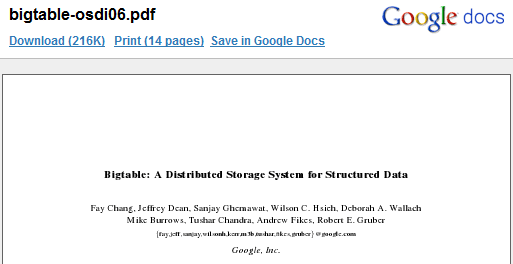
What do you do if you find an interesting PDF file previewed online using Google Docs Viewer? To save it in Google Docs, you had to download the file and upload it to Google Docs. Now you can just click on "Save in Google Docs" and the document is instantly added to your account.

This could be useful if you receive a PDF attachment in Gmail and you want to save it in Google Docs. You just need to click on "View" and then on "Save in Google Docs".


{ Thanks, Bill. }

Tuesday, April 13, 2010

How to Try the New Google Docs Apps

Here's how to try Google Drawings and the new interfaces of Google Documents and Google Spreadsheets:

* create a new drawing by opening the documents list, clicking on "Create new" and selecting "Drawing".


* to see the new document editor, go to the settings page, click on the "Editing" tab and select "Create new text documents using the latest version of the document editor." Unfortunately, you can't see the existing documents in the new interface. The new document editor is code-named "kix" and it's a completely new application.


* to switch to the new spreadsheets editor, open a spreadsheet and click on "New version" at the top of the page. All spreadsheets will now open in the new interface.


The new interface is not yet available for presentations.

Monday, April 12, 2010

Major Update for Google Docs

Google Docs has been constantly updated since 2006, Writely and Google Spreadsheets have merged, but adding new features became increasingly difficult. Now that browsers are much better than they were four years ago and cutting-edge apps like Google Wave can run in a browser, it was time for a new beginning.

"We decided to rebuild the underlying infrastructure of Docs to give us greater flexibility, improved performance and a better platform for developing new features quickly. Today, we're pleased to announce preview versions of the new Google document and spreadsheet editors and a new standalone drawings editor, all built with an even greater focus on speed and collaboration," says Jonathan Rochelle.

The new versions of the Google Docs will be rolled out in the coming days and you'll be able to try them when you see a message at the top of the page: "New version".

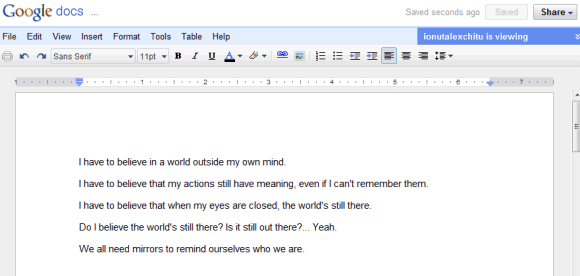
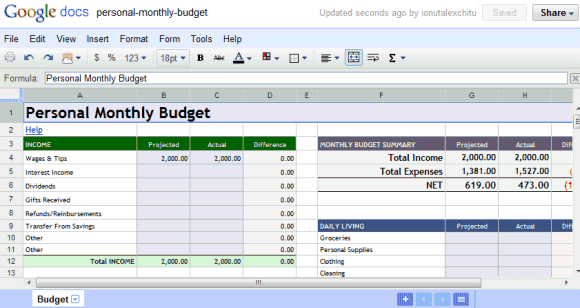
Besides using a new infrastructure, the document editor and the spreadsheet editor will add many new features. The document editor has real-time editing, sidebar chat, a new commenting system, better formatting and an improved importing feature. The spreadsheet editor brings back auto-complete, adds a formula bar for editing cells and you can now drag and drop columns.

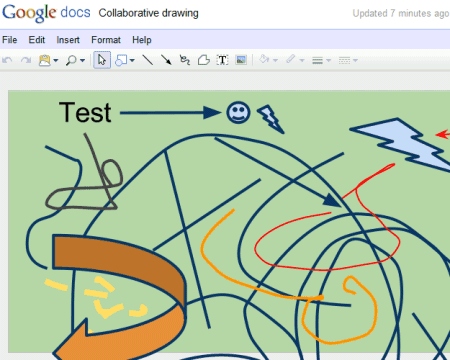
There's also an application for creating drawing collaboratively: Google Drawings. "The new standalone drawings editor lets you collaborate in real time on flow charts, designs, diagrams and other fun or business graphics. Copy these drawings into documents, spreadsheets and presentations using the web clipboard, or share and publish drawings just like other Google Docs."


Google Enterprise Blog says that the offline mode will be transitioned from Google Gears to the native HTML5 implementation. "The new Google Docs editors will take advantage of faster rendering engines in modern browsers as well as new web standards like HTML5. As a result, we need to temporarily remove offline support for Docs starting May 3rd, 2010. We know that this is an important feature for some of you, and we are working hard to bring a new and improved HTML5-based offline option back to Google Docs."

Google Docs really needed a major update, especially now when Microsoft Office's web apps are about to be launched.


{ Thanks, Jonah. }

Google Docs Shows More Information About Audio Files

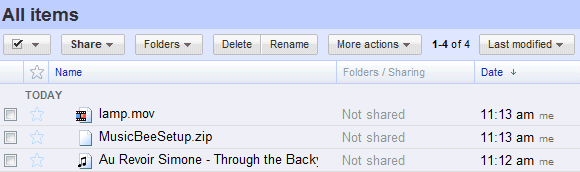
Even though Google Docs lets you upload any file up to 1024 MB, the service still has a lot to improve when it comes to previewing your files. Try to upload a video and you'll notice that Google Docs doesn't transcode the video and you can't watch it online.

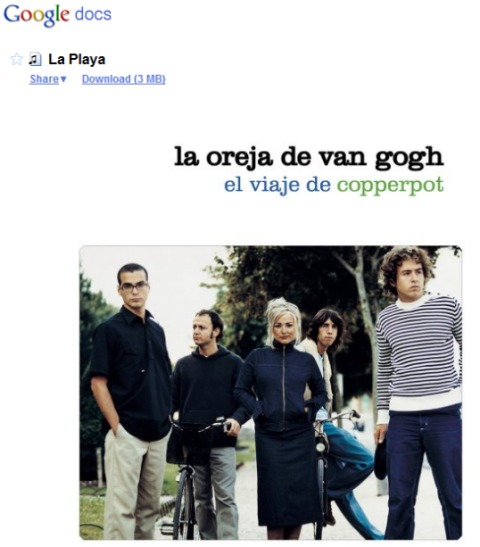
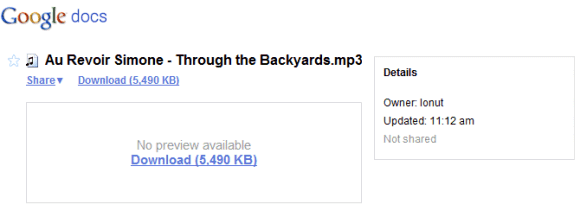
The good news is that Google is working to fix this problem. MP3 files already show song titles and album art, but you still can't play them.


Trey D., who sent this tip, found some other interesting details:
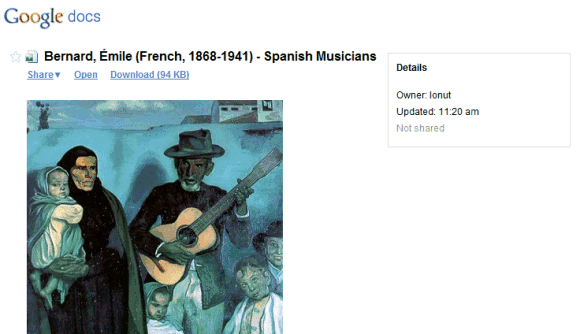
When I upload music files (.mp3) to my Google Doc's account, regardless of the filename, the Song Title (per ID3 tag) is what comes up on the list of uploaded documents.

For example, I have uploaded a song 'Beach Boys-Good Vibrations.mp3'. The title that comes up on Google Docs, once the file has been uploaded is "Good Vibrations".

This is a change from earlier behavior that listed the filename (rather than the track name) and is a bit of a nuisance when I am searching for artist names (there is no trace of the artist name remaining).

Despite it being a little annoyance, I am hoping that Google is developing a music storage service a la Grooveshark.

Wednesday, March 10, 2010

Macros for Google Spreadsheets

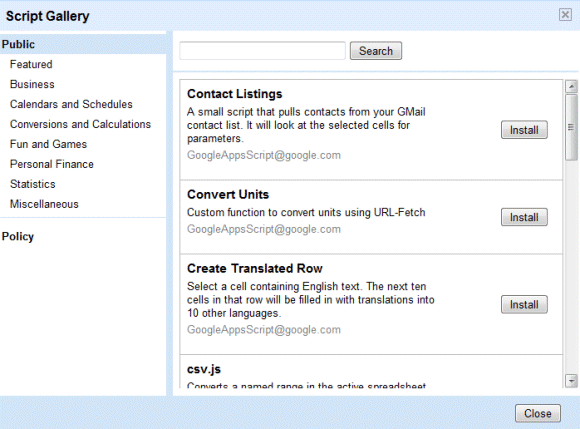
If you wanted to use macros in Google Spreadsheets, there's a good news: Google Apps Script is now available for all Google Docs users. That means you can write scripts for performing repetitive actions, creating custom functions or even adding advanced features to Google Spreadsheets.

You can try one of the featured scripts by opening a spreadsheet, clicking on the "Insert" menu and selecting "Script". Unfortunately, Google's sample scripts aren't very useful: you can play Hangman, draw a fractal, convert a named range to a CSV file or translate the text from a cell into 10 other languages.


After installing a script, you need to reload the spreadsheet to be able to use it. Then you have to find the UI element that triggers the script: usually it's a new menu. Clicking on the menu entry doesn't run the script: you first need to authorize the script and then you have to click on the menu entry one more time. It's not user friendly.


To write your own scripts, read these tutorials. You'll have to type some JavaScript code, so you should be familiar with this scripting language.

Friday, March 5, 2010

Google Acquires DocVerse

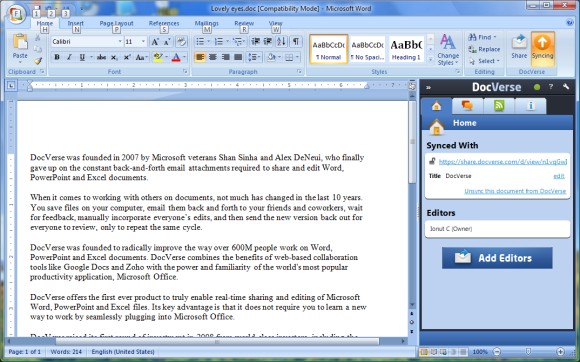
Another week day, another Google acquisition. This time, Google bought DocVerse, a company founded by two former Microsoft employees which built a plug-in for Microsoft Office that lets you collaborate with other people in real-time.

"DocVerse combines the benefits of web-based collaboration tools like Google Docs and Zoho with the power and familiarity of the world's most popular productivity application, Microsoft Office. DocVerse offers the first ever product to truly enable real-time sharing and editing of Microsoft Word, PowerPoint and Excel files. Its key advantage is that it does not require you to learn a new way to work by seamlessly plugging into Microsoft Office."

DocVerse doesn't use Google Docs as a back-end for real-time collaboration, but Google will probably integrate with Google Docs.


Google says that many people "are still accustomed to desktop software", so the acquisition will help these users to try cloud computing services while still using their favorite software.

DocVerse's blog offers an interesting perspective of a two former Microsoft employees: "We fundamentally believe that Google is one of the best positioned companies to truly disrupt the world of productivity software. We're looking forward to the opportunity to scale our vision at Google. Our first step will be to combine DocVerse with Google Apps to create a bridge between Microsoft Office and Google Apps."

Google says that you can no longer create a new DocVerse account, but there's a simple way to try the Microsoft Office plug-in. Download the setup and create a new account when DocVerse asks you to log in.

Tuesday, February 16, 2010

Server Clipboard in Google Docs

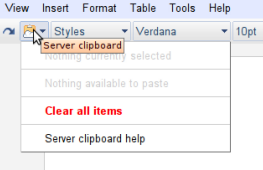
Bogdan, a reader of this blog, spotted a new Google Docs feature: server clipboard. It seems to be an implementation of Google Cloudboard, an online clipboard that should help you copy content between Google services like Gmail, Google Calendar or Google Docs. Cloudboard should make it easy to copy a spreadsheet in a Google Docs document or copy a Google Calendar event in a Gmail message.


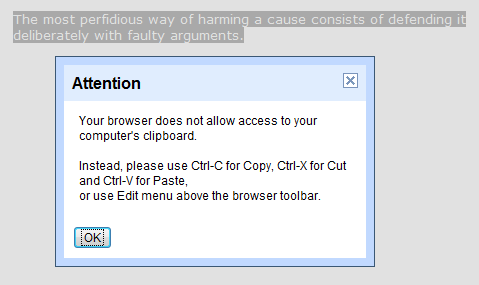
I couldn't find this feature in Google Docs, so it's probably a test. Hopefully, the new clipboard will work well in all browsers without having to change advanced settings. Right now, if you click on Edit/Copy in Firefox, Google Docs shows this message: "Your browser does not allow access to your computer's clipboard. Instead, please use Ctrl-C for Copy, Ctrl-X for Cut and Ctrl-V for Paste, or use Edit menu above the browser toolbar".


Update. Some details from Google's help article:

"There are a few specific cases in which the best way to copy and paste is using the server clipboard menu. When you copy a selection using this menu, the content you copy is stored and associated with your Google Account. That means you can copy more than one selection and then choose which one to paste later; it also means you can copy something on one computer and then paste it on another."

The article mentions that you might see "different formats that you can choose from to paste what you've copied (for example, HTML or plain text)".

It's also interesting to see that Google stores all the content you copy to the server clipboard for 30 days.

"Content you copy to the server clipboard is stored on Google's servers and remains there until 30 days have passed since you last took action on (for example, copied) a given content selection. Even if a document is deleted, anything you copied from that document to the server clipboard will still exist on Google's servers for that 30-day period. You can delete all items stored on the server clipboard by clicking the drop-down menu and selecting Clear all items."

Tuesday, January 26, 2010

Google Docs Grid View

Now that you can use Google Docs to store files, you'll upload a lot of files from your computer and treat Google Docs as an online version of Windows Explorer (or any other file manager). Unlike Windows Explorer, Google Docs had a single view for displaying files: the details view.

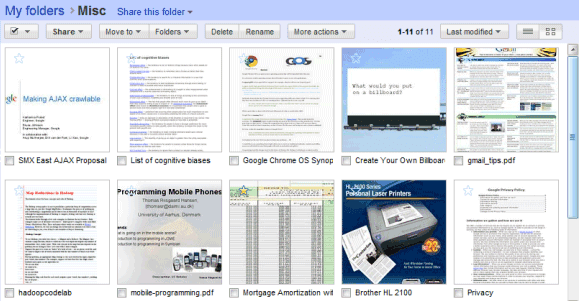
If you don't like to see the date when a file was last modified or the number of collaborators, you can switch to the new thumbnail view. Google Docs generates thumbnails for documents, spreadsheets, presentations, photos and PDF files, while showing standard icons for other file types.


"We recently finished rolling out the upload and store any file feature, so everyone should now be able to upload, store, and share any file in Google Docs. We also increased the maximum file size based on your feedback, so you can now uploads files up to 1 GB in size," mentions Google Docs Blog.

Of course, there are many other improvements that would make Google Docs more useful: increasing the free quota to at least 10 GB, adding support for any file type to the API and making it easier to access your files by mapping Google Docs as a network drive.

Tip: you can use the new grid view for shared folders by adding &layout=grid to the URL. Here's an example.

{ Thanks, Pascal. }

Tuesday, January 12, 2010

GDrive Is Coming

After many years of waiting, Google's online storage service will finally be available. It won't be called GDrive, as it will only be an updated version of Google Docs.

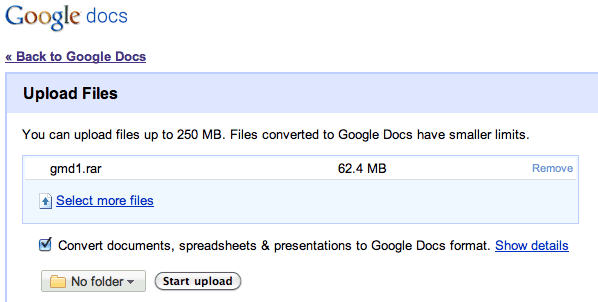
"Instead of emailing files to yourself, which is particularly difficult with large files, you can upload to Google Docs any file up to 250 MB. You'll have 1 GB of free storage for files you don't convert into one of the Google Docs formats (i.e. Google documents, spreadsheets, and presentations), and if you need more space, you can buy additional storage for $0.25 per GB per year," mentions Google Docs blog.

The update will be slowly rolled out in the coming days and it's the next step in the evolution of Google's online office suite. When Google added support for PDF files in 2008, it became clear that Google Docs will let you upload any kind of file.


Google says that the service will be able to open many common file formats. "You can search for document files you've uploaded or that have been shared with you just like you do with your Google documents, spreadsheets, presentations, and PDFs. And you'll be able to view many common document file types with the Google Docs viewer."

Google Docs has the potential to become a great service for online storage, but it won't succeed if it only includes 1 GB of free storage. Microsoft's SkyDrive offers 25 GB of free storage, while ADrive offers 50 GB of free storage. Even Gmail has more free storage than Google Docs and its main purpose is not storing files.


{ Thanks, Myron and Norman. }

Monday, January 4, 2010

Google Docs Thumbnails

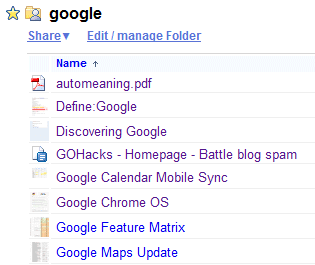
Google Docs generates thumbnails for documents, so you can quickly preview files. For now, this feature is only available if you share a folder and use the special view for shared folders.

Google stores the thumbnails using Picasa Web Albums. Here's an example of thumbnail:

http://lh5.ggpht.com/DsAScNyFZzs6EVjy0uN1F_Iwczykgoq0tEmmIu05WydKzIj0mBg-Znm-REMzvda8oWE=s32-c

You can replace s32 with other values: s64, s640 to see bigger versions of the thumbnails. It's likely that Google Docs will add a grid view for managing files in a more traditional way.

Tuesday, December 15, 2009

Google Docs Indexes PDF Files

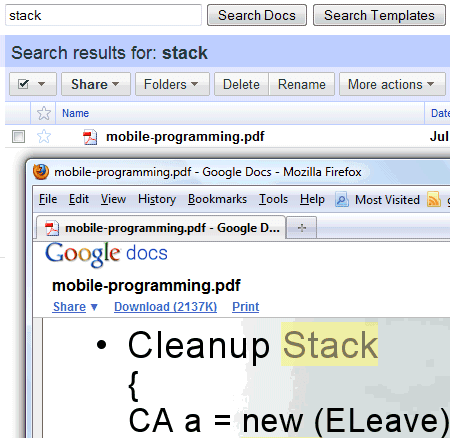
This feature should've been added a long time ago: Google Docs indexes PDF files and you can finally search the contents of all your files.

Google Docs search has been recently improved by adding support for automatic stemming and synonyms, so you can search for [create shortcut] and find documents that contain [creating shortcuts] or [creates a shortcut].


To make things even better, Google should detect scanned PDF documents and use OCR to extract text. This feature is already used by Google's search engine to index scanned documents and it's available as an experiment for Google Docs API.

Wednesday, December 9, 2009

Export All Your Google Documents in 3 Steps

Google made it easier to export all your documents, spreadsheets, presentations and PDFs from Google Docs:

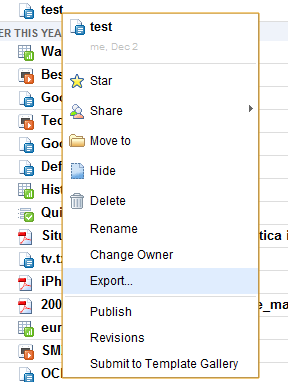
1. right-click on one of the files from the docs list and select "Export"


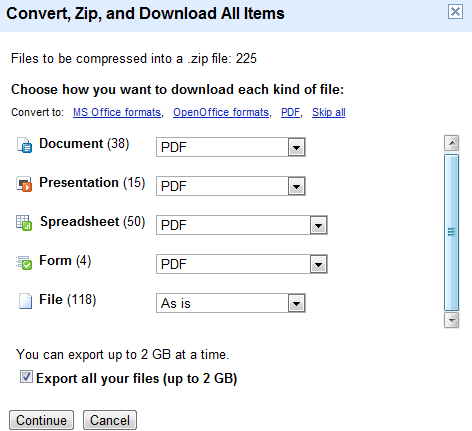
2. check "export all your files (up to 2 GB)" and click on "Continue"


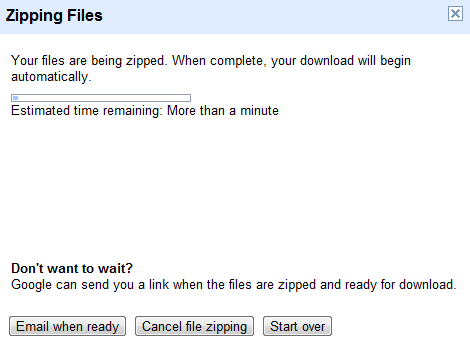
3. wait until the files are archived or click on "Email when ready"


While this is a great way to backup all your files, an application that synchronizes your documents would be more useful.

{ via Google Docs Blog }

Google Docs Sorts Results by Relevance

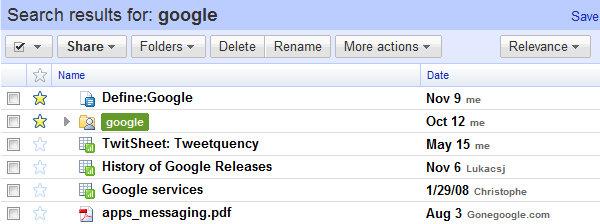
Google Docs started to sort search results by relevance. Until now, search results were sorted by the last modified date.

"This improvement to search within Docs also includes automatic stemming and synonyms. So if you search for check account, we'll also include results for a few variations of those words, including checking account (which is what you probably meant to type). Or if you search for mac book, we'll also include results for macbook."

The results are not perfect, but at least the documents that include your keywords in the title are prioritized. It would be useful to display a snippet for each search result and an option to preview a document before opening it.


If you'd like to sort the results by date, click on "Relevance" and select "Last modified" from the drop-down.