Monday, July 7, 2008

Google Maps Tests Walking Directions

Google Maps tests a new feature: walking directions. You can already get driving directions and, for a small number of locations, Google Maps has transit directions, but these directions are not always useful if you don't use a car or a bus.

Google suggests to "use caution when walking in unfamiliar areas", since the "walking directions are in beta". Chris, who sent this tip, spotted the feature for New York, but it's likely that Google randomly selected a small number of users to try the new feature and send feedback.


Update (July 22): Search Engine Roundtable noticed that the walking directions are live. The new feature is available in most locations where Google offers driving directions.

{ Thank you, Chris. }

Import OPML Files to iGoogle

While exporting iGoogle feeds to OPML could be used if you want to move your feeds to another service, importing feeds from an OPML file is a good way to add a large number of feeds to iGoogle.

Here's how you can import the feeds from an OPML file to iGoogle:

1. Obtain an OPML file from your feed reader or personalized homepage:
* Google Reader lets you export your subscriptions in the Settings (direct link to the OPML file)
* Bloglines has a link in the main interface: "Export Subscriptions"
* in Netvibes you have to click on Add content > Add a feed > Export
* My Yahoo has a difficult-to-find OPML file
* Windows Live lets you export your subscriptions in the advanced options
* to export Firefox's live bookmarks, install an extension.

I only tested the script with the OPML files exported by Google Reader, Bloglines, Netvibes, My Yahoo and Windows Live Personalized Homepage, so the conversion might not work for other feed readers.

2. Open the OPML file in a text editor and copy all the content below. (If you are concerned about sharing private data, you should know that this is just a client-side script that doesn't store your data and it doesn't send it to a third-party service.)


3. What you got is the content that needs to be added at the bottom of iGoogle's settings file. Log in to your Google account, go to iGoogle's settings page and scroll to the Export / Import section. Click on "Export" to download iGoogle-settings.xml, a file that contains a list of all your gadgets, feeds and their settings. Don't close the iGoogle settings page because you'll need to import the file later.

4. Backup your iGoogle settings file. Create a copy of the iGoogle-settings.xml file, just in case something goes wrong. You'll be able to import the settings and go back to a working iGoogle.

5. Open iGoogle-settings.xml in a text editor and add the text obtained at the step #2 before the line that contains </GadgetTabML> (the last non-blank line), like you see in the screenshot.


6. Save the file and import it to iGoogle settings, in the Export / Import section.

All folders from the OPML file should be converted to iGoogle tabs, which can be renamed and reordered in the settings. iGoogle doesn't save the state of an item (read/unread) and only lets you see up to 9 recent items from a feed, but it's a great dashboard for your feeds.


Related:
Export iGoogle feeds to OPML

Sunday, July 6, 2008

Export iGoogle Feeds to OPML

I've heard many people complaining that iGoogle doesn't offer an option to export feeds. Some of them wanted to use a feed reader like Google Reader, while others intended to migrate to competing services like Netvibes or Pageflakes.

Thankfully, iGoogle lets you export your settings and gadgets as a XML file, which can be easily processed and transformed into an OPML file.

Here's what you need to do if you want to export the feeds from your iGoogle page in the OPML format:

1. Log in to a Google account.

2. Open this page, right-click and select "View source" (for Internet Explorer), "View page source" (Firefox) or "Source" (Opera). Copy the entire content of the file to the clipboard (Ctrl+A, Ctrl+C). Alternatively, download iGoogle's backup file and open it in a text editor.

3. Paste the code below and then click on "Convert to OPML". (If you are concerned about sharing private data, you should know that this is just a client-side script that doesn't store your data and it doesn't send it to a third-party service.)


4. Save the output in a XML file: igoogle-subscriptions.xml.

To import the file in Google Reader, go to Settings, click on Import/Export and upload the OPML file. In Netvibes, the steps are less obvious: Add content > Add a feed > Import. Most feed readers have an option to import a list of subscriptions.

I tested the script for converting iGoogle's backup file in IE7, Firefox 3, Opera 9.5, using Google Reader and Netvibes as destinations.


Related:
Import OPML files to iGoogle

Thursday, July 3, 2008

Viacom Wanted the Source Code for Google's Search Engine, But Obtained YouTube's Server Logs

In the ongoing trial between Viacom and Google, regarding the videos uploaded to YouTube that infringe Viacom's copyright, Viacom really wants to prove that the most popular videos watched at YouTube were from its programs. Viacom even claimed that Google's search results are biased to give better ranking to the infringing YouTube videos, so it asked for... Google's source code (and YouTube's source code too). Here are some excerpts from the rulings:
Plaintiffs move jointly pursuant to Fed. R. Civ. P. 37 to compel YouTube and Google to produce certain electronically stored information and documents, including a critical trade secret: the computer source code which controls both the YouTube.com search function and Google's internet search tool "Google.com". YouTube and Google cross-move pursuant to Fed. R. Civ. P. 26(c) for a protective order barring disclosure of that search code, which they contend is responsible for Google's growth "from its founding in 1998 to a multi-national presence with more than 16,000 employees and a market valuation of roughly $150 billion" and cannot be disclosed without risking the loss of the business.

The search code is the product of over a thousand person-years of work. There is no dispute that its secrecy is of enormous commercial value. Someone with access to it could readily perceive its basic design principles, and cause catastrophic competitive harm to Google by sharing them with others who might create their own programs without making the same investment. Plaintiffs seek production of the search code to support their claim that "Defendants have purposefully designed or modified the tool to facilitate the location of infringing content." (...) YouTube and Google maintain that "no source code in existence today can distinguish between infringing and non- infringing video clips -- certainly not without the active participation of rights holders".

Unfortunately for Viacom and Google's competitors, the request to provide the source code has been rejected. But another request, this time for YouTube's server logs, has been approved.
Defendants' "Logging" database contains, for each instance a video is watched, the unique "login ID" of the user who watched it, the time when the user started to watch the video, the internet protocol address other devices connected to the internet use to identify the user’s computer ("IP address"), and the identifier for the video. That database (which is stored on live computer hard drives) is the only existing record of how often each video has been viewed during various time periods. Its data can "recreate the number of views for any particular day of a video." Plaintiffs seek all data from the Logging database concerning each time a YouTube video has been viewed on the YouTube website or through embedding on a third-party website. They need the data to compare the attractiveness of allegedly infringing videos with that of non-infringing videos.

Google argued that the task requires a lot of resources, since the logging database has 12 TB, and it violates users' privacy. Google has previously stated in a blog post that an IP address without additional information cannot identify people, so it's not personal information. "Therefore, the motion to compel production of all data from the Logging database concerning each time a YouTube video has been viewed on the YouTube website or through embedding on a third-party website is granted."

Viacom wanted other things: the schema for Google's advertising database and for Google Video's database, data about private YouTube videos etc. You can read the entire document as it's pretty entertaining.

Salon thinks that "all's not lost. Google might manage to reverse this decision on appeal, and Viacom, gauging the outrage, could decide to withdraw or limit its request." After all, getting YouTube's server logs just to determine the popularity of the infringing videos is an abuse: YouTube could have offered aggregated data about those videos.

Update: According to Search Engine Land, Google sent a letter to Viacom regarding the removal of personal data.
Given Plaintiffs' stated reasons for seeking information from the logging database -- to conduct proportionality analyses -- potentially personally identifiable information should be irrelevant. Indeed, Plaintiffs have previously represented that they do not desire to investigate users' viewing activities, and Viacom's general counsel is on record today stating that Viacom does not want to receive individuals' usernames and IP addresses. Accordingly, we request that Plantiffs agree that YouTube may redact usernames and IP addresses from the viewing data in the interests of protecting user privacy.

Update 2 (July 15): "We are pleased to report that Viacom, MTV and other litigants have backed off their original demand for all users' viewing histories and we will not be providing that information," says YouTube Blog.

Google Results in Firefox's Address Bar

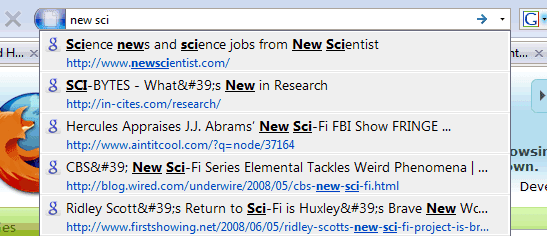
Ryan Wagner from CyberNet News developed CyberSearch, a Firefox extension that lets you see Google results in the address bar. The extension adds new functionality to Firefox 3's address bar, which already shows bookmarks and other pages from your web history.

By default, CyberSearch is a little inefficient: it performs web searches as you type in the address bar and it shows Google's search results after the local results obtained by Firefox. If you type one or two letters, it's likely that the address bar will only show suggestions from your local history. For more precise queries, you should mostly see Google results. In the example below, I only had to type [new sci] to directly access New Scientist.


If you usually type your queries in Firefox's address bar, you know that sometimes Firefox sends you to the top result for your keywords (e.g.: enter [new scientist]), while in most cases you're sent to the list of search results (e.g.: the ambiguous [scientist]). CyberSearch is redundant for many navigational searches since the top results is the only one that matters and Google sends you to the top result anyway.

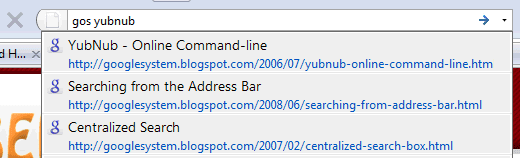
But there's a way to trigger the list of search results only when you need it: start your query with the special keyword "goog". Enable keywords in the options (Tools > CyberSearch Options), where you can add your own keywords that trigger results from specialized search engines like Google News or restrict the results to a single domain. For example, I added the keyword "gos" that shows Google results from this blog:


To only show search results when you start your query with a special keyword, go to Tools > CyberSearch Options, and check:

[x] Enable keywords
[x] Show only search results when a keyword is recognized
[x] Don't perform a search unless a keyword has been typed

It's difficult to determine if a result is useful without reading some snippets from the web page, so CyberSearch is great when you want to re-find specific pages from familiar sites.

This extension is based on Searchery and the same idea is used in Inquisitor, a Mac application recently acquired by Yahoo.

Other ways to search more effectively from your browser:
* Outsource Firefox's keywords to YubNub
* Tips for Google Toolbar
* Link to a page using Google AJAX Search

Second-Class Google Citizens

Every time Google releases a new feature for Gmail, Calendar, Google Docs etc. people who use Google Apps are left wondering whether they'll get the new feature. Sometimes they have to guess addresses, like for the new mobile Google Talk. They are supposed to figure out that the Google Apps version of: http://talkgadget.google.com/talkgadget/m is http://hostedtalkgadget.google.com/a/YOURDOMAIN.COM/talkgadget/m.

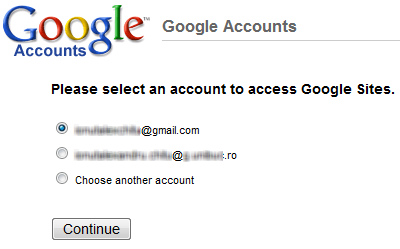
Besides having to deal with delayed updates and mysterious addresses, Google Apps users usually have at least one standard Google account and it's difficult to switch between the two parallel worlds. I noticed that when you go to Google Sites and you're logged using both a Google account and a Google Apps account, you are asked to choose one of them:


Maybe Google could somehow integrate Google accounts with Google Apps accounts so you can access all the services and get all the new features. The services that are part of Google Apps should have a customized interface and functionality, while the other services should only interact with them so you can, for example, share Google Reader items with your Google Talk contacts.

Wednesday, July 2, 2008

Google Talk for iPhone

Google has finally launched a mobile version of Google Talk, but it's optimized for iPhone's browser. You can access if you go to google.com/talk on an iPhone/iPod Touch or using this permalink: http://talkgadget.google.com/talkgadget/m (shorter URL: http://tinyurl.com/4vnfcd).


This Ajax version is based on Google Talk's Flash gadget, but it doesn't include tabs, group chat, options to add contacts and send email. What you can do is to update your status, search your contacts and chat with people that are online.

Besides this mobile interface, Google also has a mobile app for Blackberry. That means if you don't have a Blackberry, an iPhone or at least a WebKit mobile browser, you have to find a third-party service.

eBuddy is a service that offers both a basic mobile interface for Google Talk and a mobile application that lets you chat faster with your friends. eBuddy doesn't connect only to Google Talk, it's a multi-network IM client that works with MSN, Yahoo and AIM. Unfortunately, I couldn't find any information regarding the way eBuddy stores or uses your credentials and seeing that eBuddy sends the password in plain text is worrisome.

Another mobile application that lets you chat with your Google Talk contacts is Fring, but it only works on Symbian and Windows Mobile devices. As usually, make sure you trust the service before entering the username and password of a Google account.